Read your cloud.Reach every server.One window
Cloud Toolkit scans a cloud project, maps its network and what needs attention, then lets you work on the servers over SSH, RDP and SFTP — without leaving the window.

- Views
- 86 inspect · 2 operate
- Connect
- SSH · RDP · SFTPSession tabs and groups
- Scans
- NHN CloudPublic · Gov
- Agents
- MCP11 tools
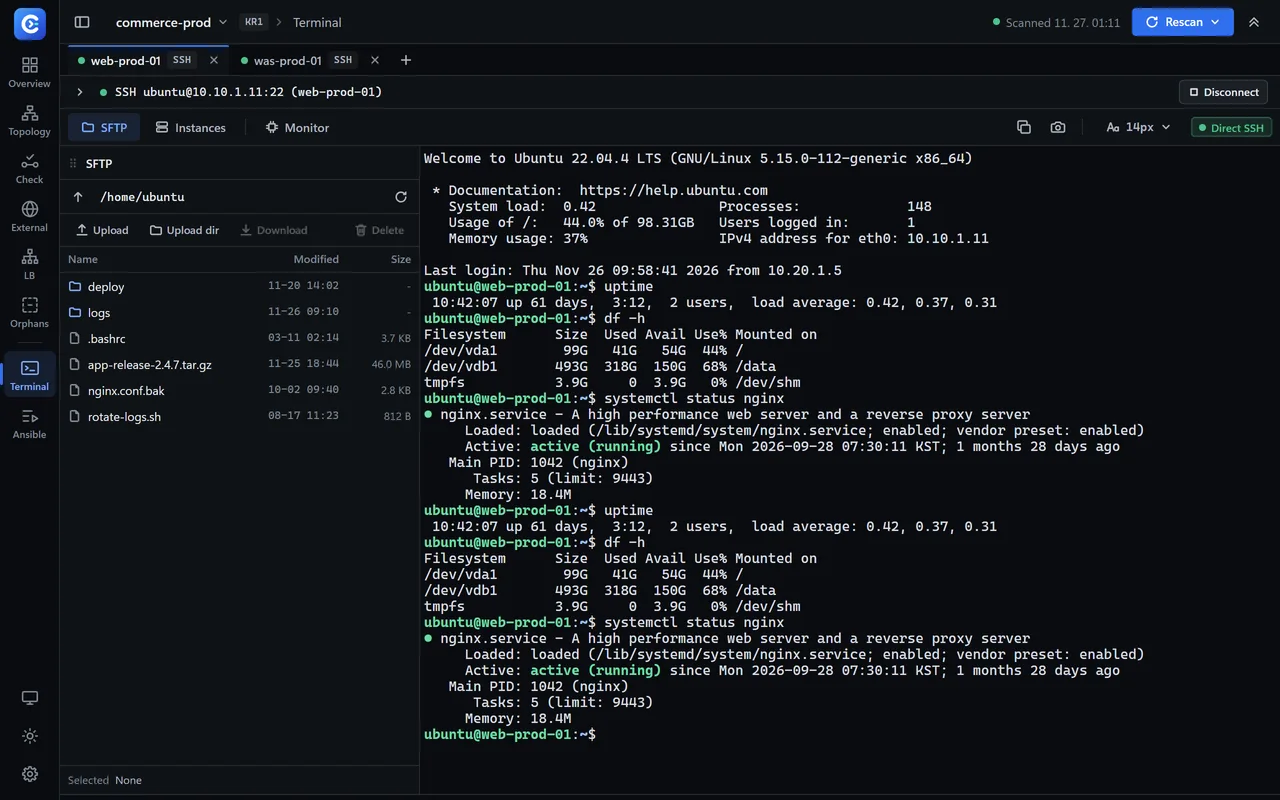
Every screen shown here was made with sample data, not a real environment.
Connect from where you look. Run from where you connect.
Pick an instance on the diagram and you are in its terminal. Sessions stay open while you move between views.
01
Inspect
One scan reads the VPCs, subnets, instances and load balancers, and leads with what needs attention.
- Overview
- Topology
- Connectivity check
- External access
- Load balancers
- Orphan resources
02
Operate
Open SSH, RDP and SFTP sessions as tabs, and run the same command on many servers at once.
- Terminal
- SFTP
- RDP
- Server monitor
- Ansible
03
Delegate
AI agents running on this PC drive the app through MCP. Sensitive actions wait for a person to approve them in the app.
- Built-in MCP server
- Claude Code
- Codex
- Claude Desktop
- Antigravity


One scan, six questions
A scan reads the project's resources from the cloud API, analyzes them and saves the result on your PC. Six views read that result, each with a different question.
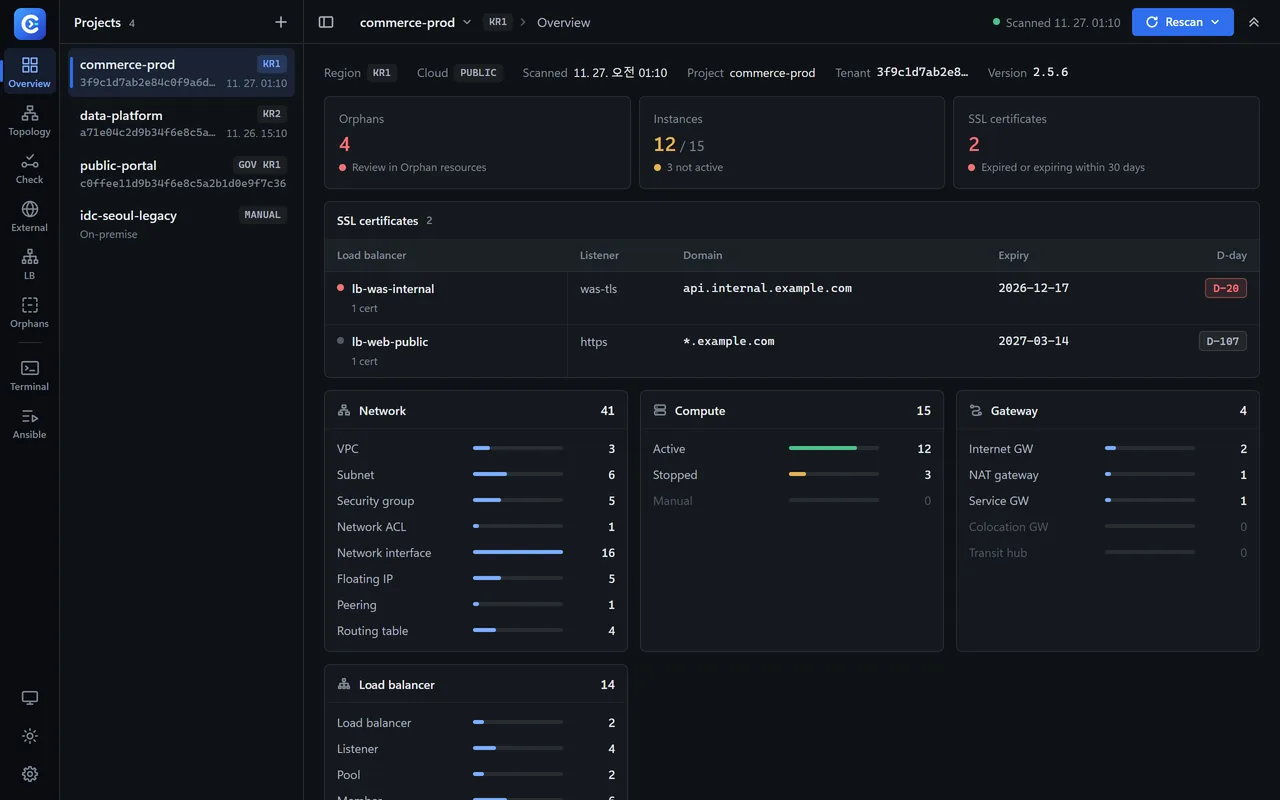
What should I look at first?Orphan resources, stopped instances and certificates close to expiry come first; the full resource inventory follows.
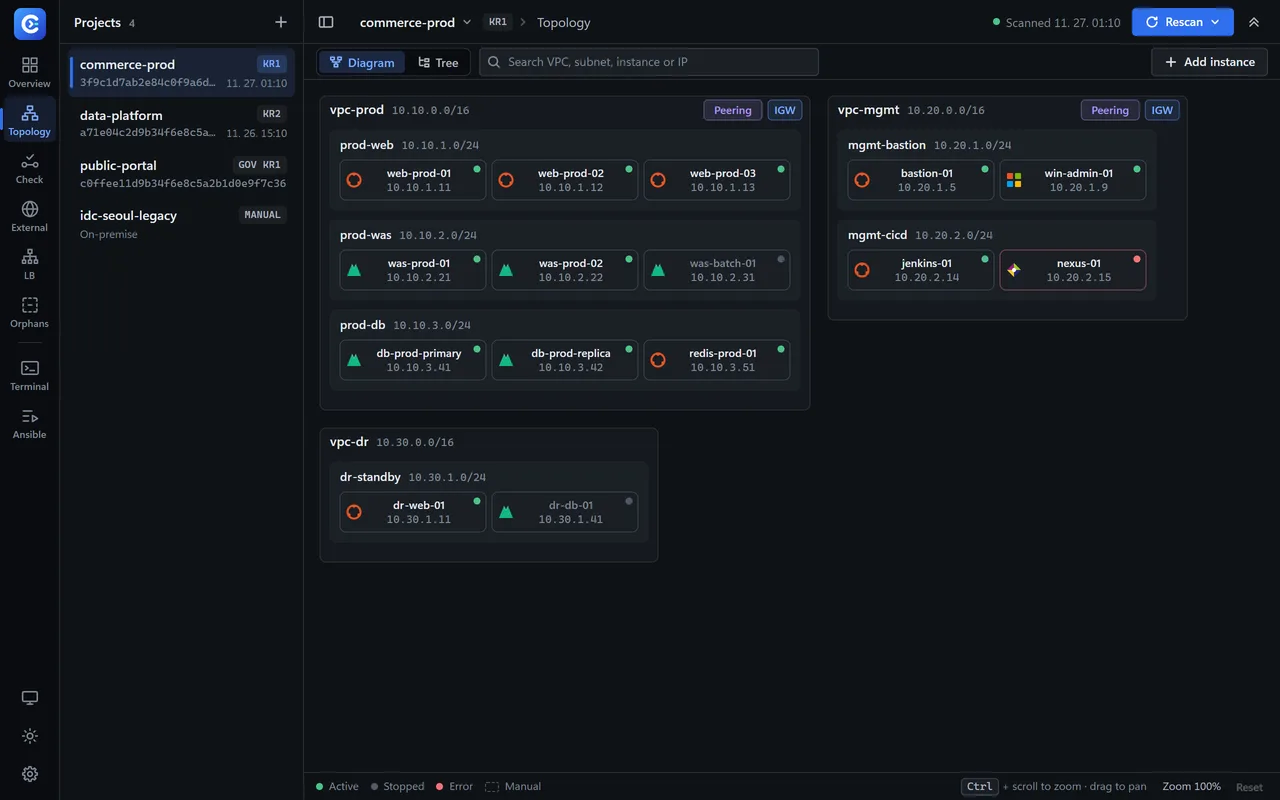
How is it laid out?VPC › subnet › instance, as a diagram or a tree. Right-click an instance to go straight to an SSH connection.
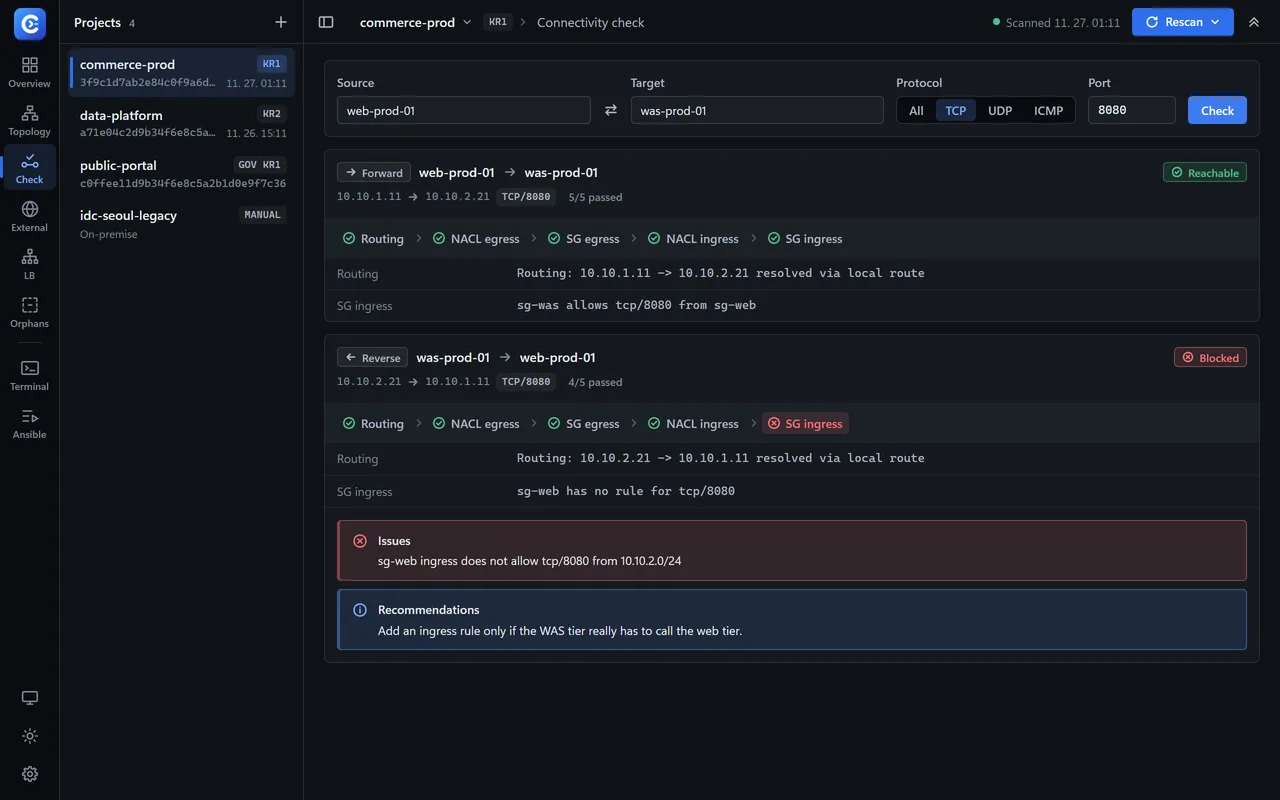
Can this reach that?The path between two points is checked in order — routing, network ACL, security group — with each direction judged separately and the blocking step named.
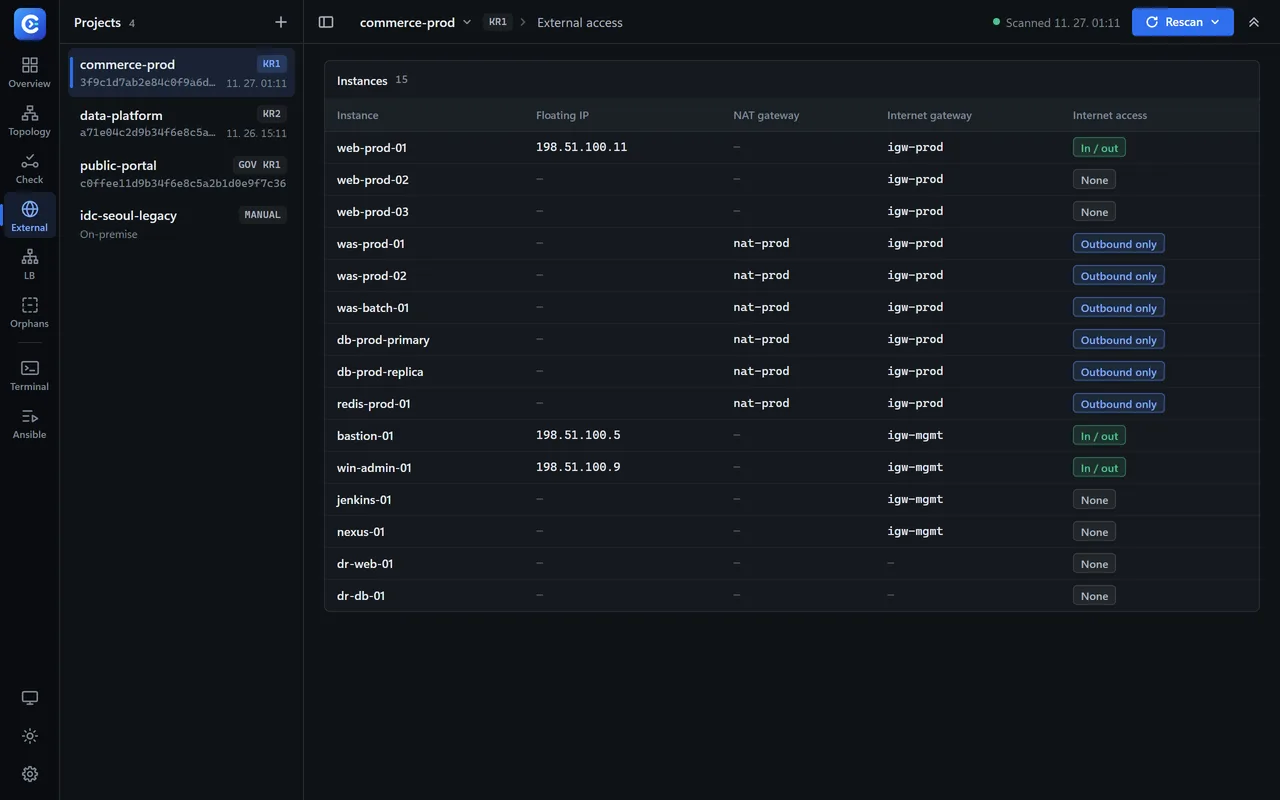
What touches the internet?For each instance: its floating IP, NAT gateway and internet gateway path, and whether traffic can come in, go out, or both.
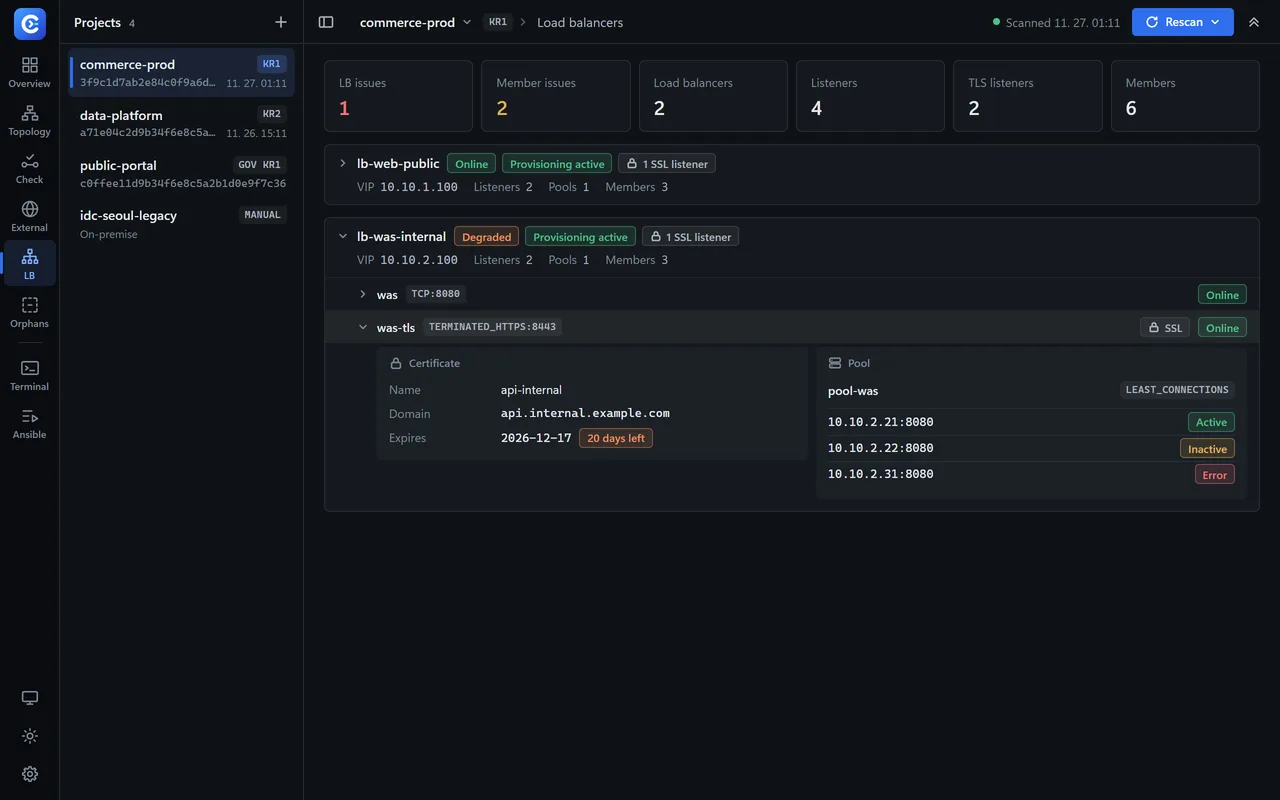
Are the load balancers healthy?Expand load balancer › listener › pool › member to read their state, and see certificate expiry as a D-day count.
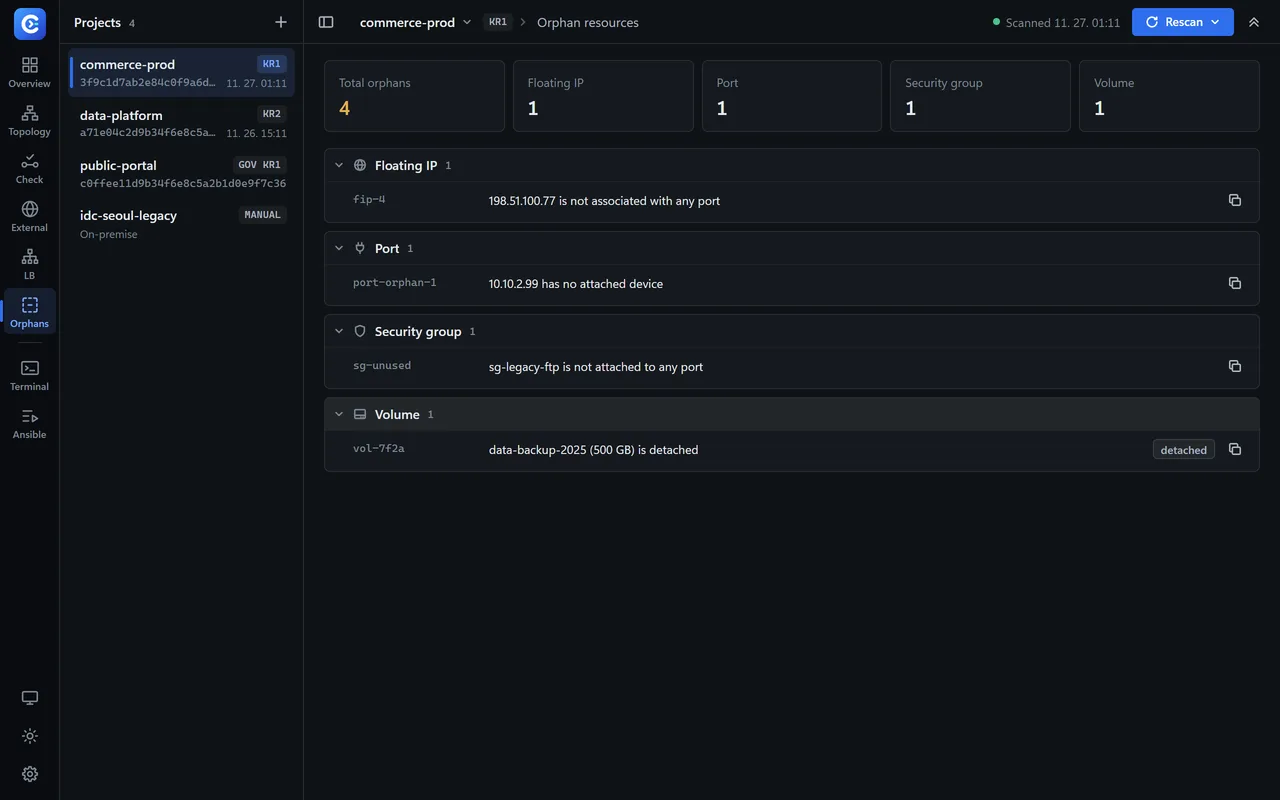
What was left behind?Floating IPs, network interfaces, security groups and volumes that are attached to nothing, grouped by type for clean-up.
How a scan works
- Direct
- Scanning and authentication go from this PC straight to the cloud API.
- Saved
- Results are stored on the PC; reopening a project shows the last result at once.
- As much as you need
- The Rescan menu refreshes everything, or only the part behind the view you are in.
Scans
NHN Cloud
- PublicKR1KR2KR3JP1US1
- GovKR1KR2
Any other server goes into a manual project and uses the same connection features.
The terminal is the hero
Thin chrome, wide sessions. Open SSH and RDP sessions as tabs, and handle file transfer and server health right next to the terminal.
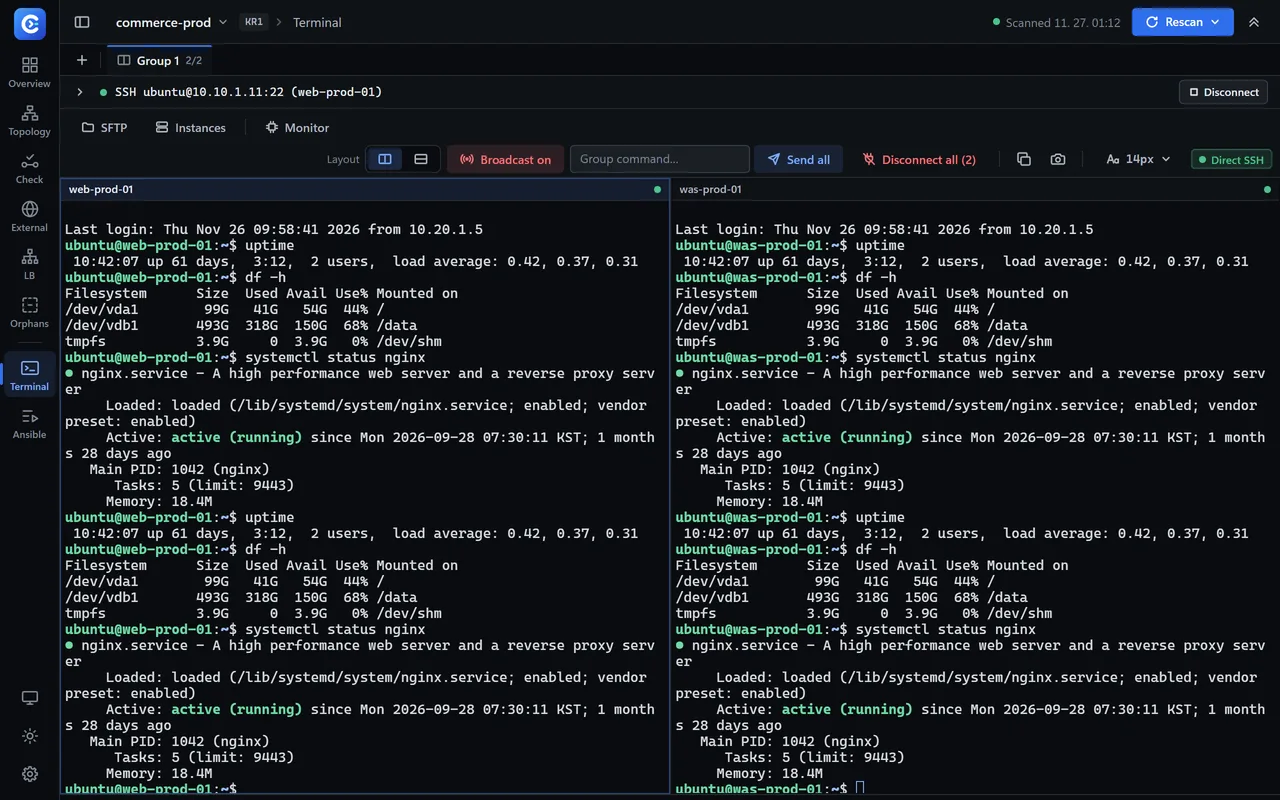
- Session tabs and groupsOpen sessions as tabs, then group the ones you pick to see them side by side.
- BroadcastTurn it on and one keystroke goes to every session in the group.
- Route, always visibleDirect or through a jump server — the route in use is always shown.
SFTP panel
Browse, upload and download beside the terminal. cd in the terminal and the panel follows; change folder in the panel and the terminal follows.
RDP
Windows remote desktops open in the same session tabs, with two engines: Microsoft Native and IronRDP.
Server monitor
CPU, memory, disk, processes, network and the system log in a separate window. Nothing to install on the server.
SSH key profiles
Register OpenSSH and PuTTY .ppk keys as reusable profiles, grouped by origin and matched against the PuTTY sessions on this PC.
Screensaver lock
The terminal area is covered when idle. Set a password and it becomes a lock.
Dark · Light
The whole app has both themes; terminal colors follow the theme or a palette you choose.
Behind a bastion? Set the route once.
Register a bastion's DNAT rules or a jump server in the project, and the matching route is applied whenever you connect over SSH.

- Direct SSH
- BastionDNAT
- Jump serverAccess-Gated SSH
- Direct SSHStraight to the target.
- DNATTell the app which public address:port maps to which private IP:port and it rewrites the address for you.
- Access-Gated SSHConnect to the jump server first, then through it to the target.
The route in use is shown in the connection dialog and above the terminal. SSH routes do not apply to RDP.
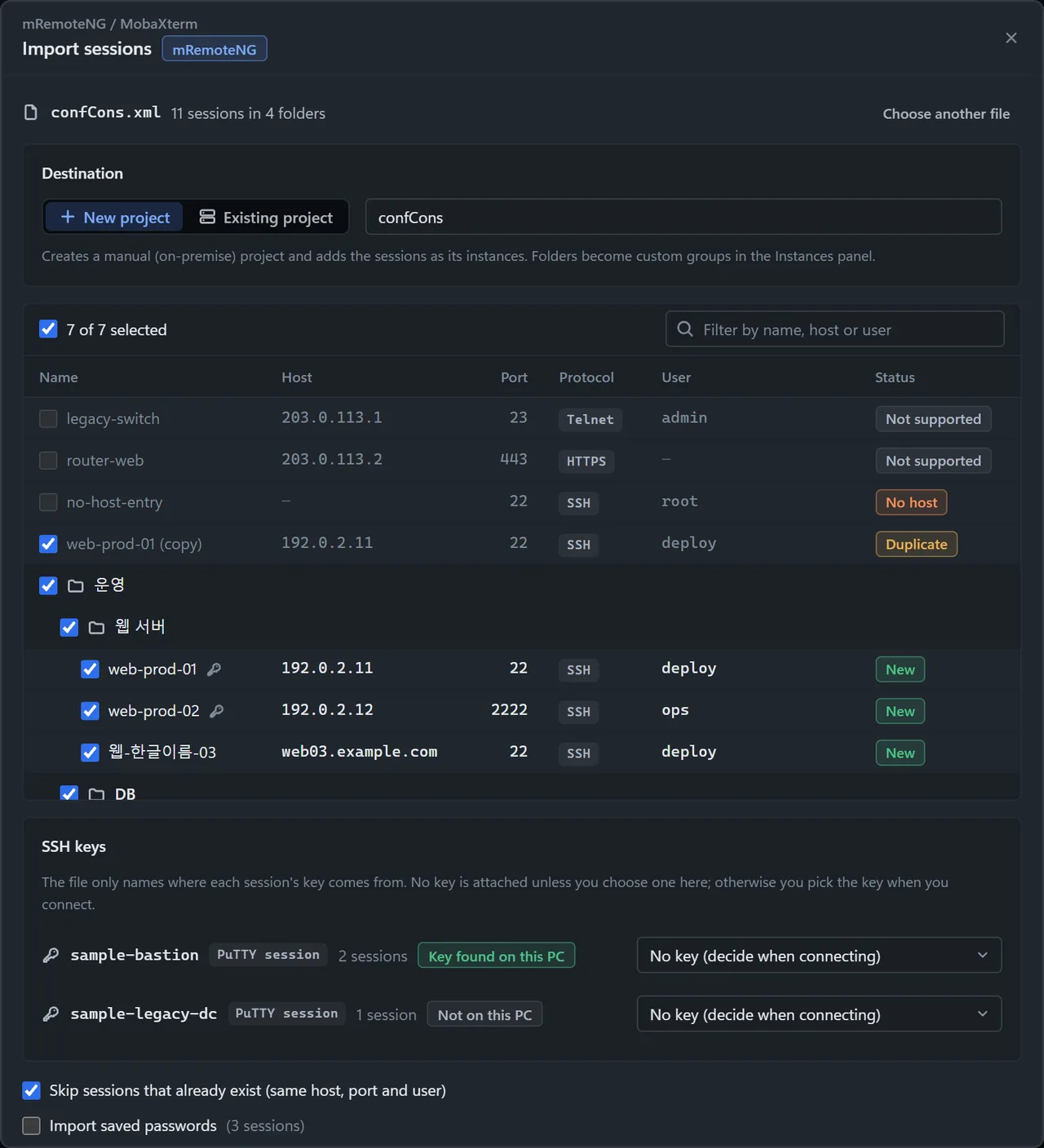
Bring the sessions you already have
Cloud Toolkit reads mRemoteNG and MobaXterm session files and builds the server list. Folders become groups; sessions you already have are skipped.
- Files
- mRemoteNG confCons.xml · MobaXterm .mxtsessions, MobaXterm.ini
- SSH keys
- The key each session points to is matched against the PuTTY sessions and key files on this PC. You choose what to attach.
- Passwords are opt-in
- Importing saved passwords is off by default.
- Excel template
- Connection settings can also be exported to .xlsx, edited and imported back in bulk.
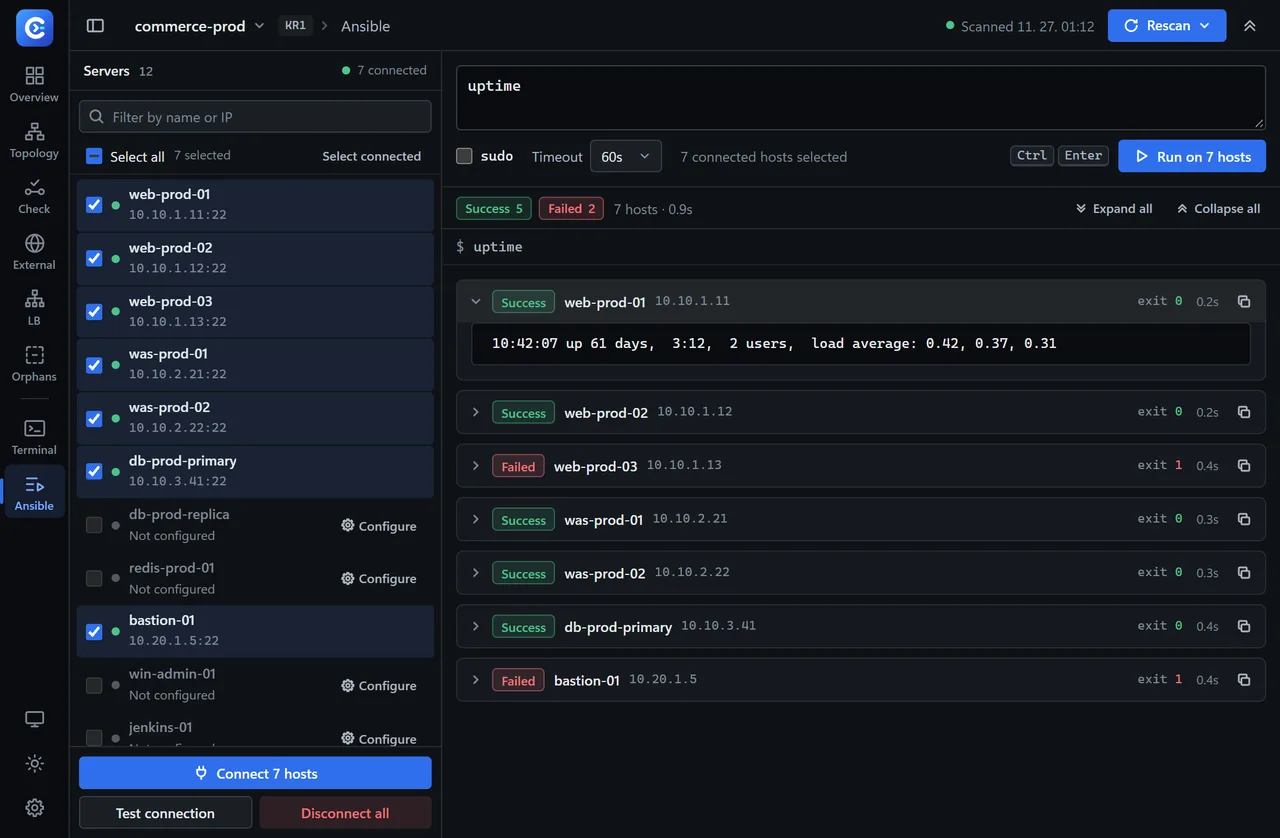
Many servers, one command
In the Ansible view, pick servers, connect them and run a command: it runs on every selected server at once. Results arrive as one card per server, successes and failures counted first.
- Up to 20 servers in parallel
- sudo and timeout options
- Exit code, duration and output per server
There is no confirmation before a run. Check the selected servers and the command first.
Hand the work to an agent. Keep the decisions.
Cloud Toolkit has a built-in MCP server. MCP clients running on this PC — Claude Code, Codex, Claude Desktop, Antigravity — can list projects, scan, run terminal commands and transfer files through the app.
- check disk usage on web-prod-01
- cloud_toolkit_status
- app running · agent control on
- cloud_toolkit_get_state
- commerce-prod · 15 instances · scanned
- cloud_toolkit_call_action terminal.connect
- session opened · saved credentials stay in the app
- cloud_toolkit_execute_command "df -h"
- /dev/vdb1 493G 318G 150G 68% /data
- delete requested → waiting for approval in the app
- 01
Off by default
It works only after you turn it on in Settings. Registering a client and allowing control are separate: registration alone gives an agent no control.
- 02
Sensitive actions are approved in the app
Deleting, overwriting files and changing key connection settings wait for a person at an approval dialog. Agents cannot click approval dialogs, password prompts or host-key warnings.
- 03
Secrets are masked
Passwords, private keys and tokens stored in projects, routes and key profiles are masked in responses.
- 04
Locked means stopped
While the screensaver lock is on, every agent request is refused.
Register in one click
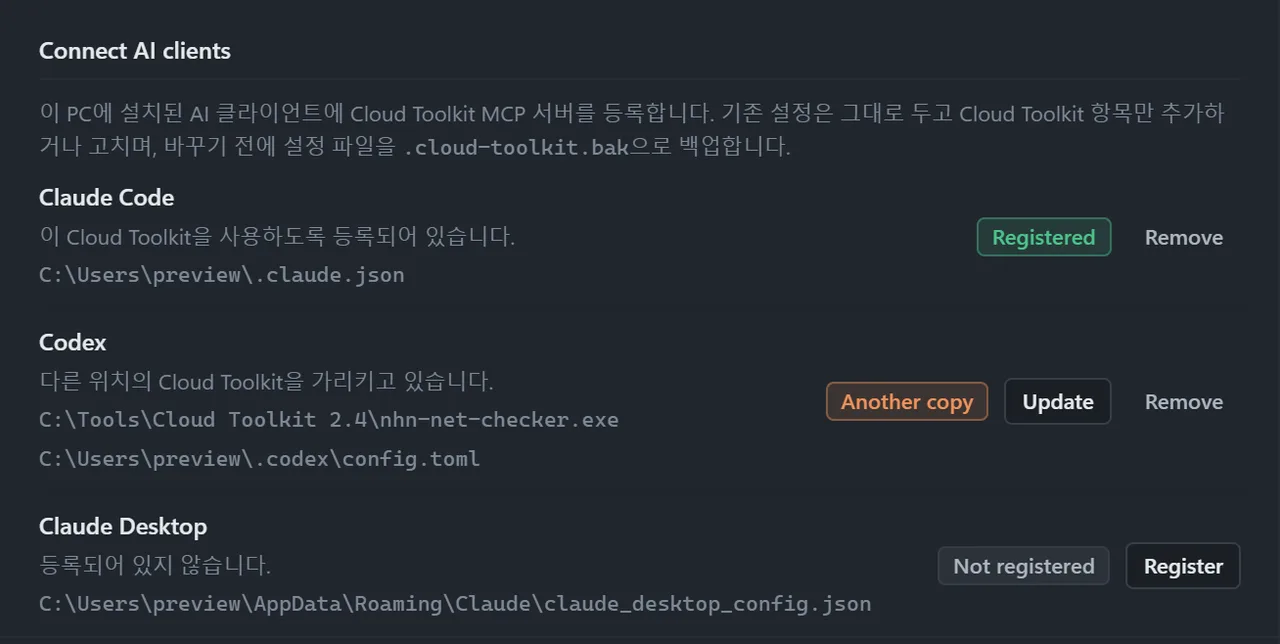
Go to Settings › AI agent (MCP) › Connect AI clients. Existing settings are left alone, only the Cloud Toolkit entry is added, and the config file is backed up before it changes.
- Claude Code
- Codex
- Claude Desktop
- Antigravity
Any other client can register the stdio MCP server by hand.
11 MCP tools
Status, discovery, execution and job tracking. Find a capability with list_actions, then run it with call_action.
- cloud_toolkit_status
- cloud_toolkit_list_actions
- cloud_toolkit_call_action
- cloud_toolkit_get_state
- cloud_toolkit_list_sessions
- cloud_toolkit_execute_command
- cloud_toolkit_read_terminal
- cloud_toolkit_capture_screenshot
- cloud_toolkit_list_jobs
- cloud_toolkit_get_job
- cloud_toolkit_cancel_job
Terminal output and screens an agent reads may be passed on to the AI service that agent uses. The app shows this scope and asks for confirmation before a client is registered.
Nothing hidden about what is kept where
An operations tool handles credentials. So the manual states plainly where things are stored, what is encrypted, and which actions run without a confirmation.

On this PC, encrypted
Project accounts, connection settings, SSH keys and routes are stored on this PC with AES-256-GCM. They open only on the same PC under the same Windows user.
One file to move
To move to another PC, Settings › Migration exports and imports a single password-encrypted file.
A changed host key stops the connection
If an SSH server's key differs from the saved one, the app stops and asks.
Limits, written down
What is stored in plain text and which actions run without a prompt are listed in the manual's Security and data chapter.
Every feature, shown on screen, as web docs
Seventeen chapters and an appendix, from installation to security, readable right here. Search inside the docs and share a link to any chapter or topic. Every figure was made with sample data.
Get started
Inspect
Operate
Assist
Manage
Appendix
Install, add a project, scan
One Windows installer. Nothing to install on your servers.
Cloud Toolkit 2.5.12
- File
- Cloud-Toolkit_2.5.12_x64-setup.exe · 7.6 MB
- SHA-256
- 03ab15b1d8d372497e85c7d30d18559497d5fc4c316f89c6eb584cdc7d09d3bd
- 01
Install
Run the installer. It installs for the whole PC, so it asks for administrator rights.
- 02
Add a project
Enter the Tenant ID, Username and API password, check them with Test connection and save. For servers without a cloud, create a manual project.
- 03
Scan and connect
Press Scan and the views fill in. Pick an instance in Topology and connect.
What you need
- A Windows PC
- The window opens at 1400×900; the minimum is 1000×600.
- Cloud account details
- Tenant ID, Username and API password, used to register a cloud project.
- Server access details
- Address, port, account and an SSH private key (OpenSSH or .ppk) or a password.
- Microsoft EdgeOptional
- Only needed for peering sync.
- Existing session filesOptional
- mRemoteNG or MobaXterm files, if you want to import your server list.
- The installer is not code-signed yet. If Windows SmartScreen warns about an unknown publisher, choose More info, then Run anyway.
- There is no auto-update. Install a newer version with its installer.
- Settings and data live in the Windows user folder, not the program folder.
What changed, version by version
2.5.12
LatestThe homepage and updates moved to cloudtoolkit.kr.
- ChangedThe app now checks cloudtoolkit.kr for new versions first and falls back to the old address. Some company firewalls blocked the old address as 'Dynamic DNS'.
2.5.11
AI agents (MCP) now send only plain commands a person can read, and the taskbar icon is full size and centred.
- ChangedCommands an AI agent (MCP) sends to a server must now be one plain command that does one thing. echo/printf banners and fixed text, comments, commands chained with ; or &&, and compound forms such as $(…), bash -c or loops are refused with the reason, so the agent splits the work and sends it again.
- FixedFixed the Cloud Toolkit taskbar icon looking small and shifted to the top left when display scaling is not 100%.
2.5.10
Register the MCP server with Google Antigravity too.
- NewSettings › AI agent (MCP) › Connect AI clients registers, updates and removes Cloud Toolkit in Antigravity. It writes Antigravity's global MCP configuration, backing it up first and keeping other servers. After registering, refresh Antigravity's MCP servers screen or reopen it.
- DocsThe user manual and the homepage list Antigravity among the MCP clients.
Why it was built

This section is being written.
The story behind the product and where it is going will be told here in its maker's own words.